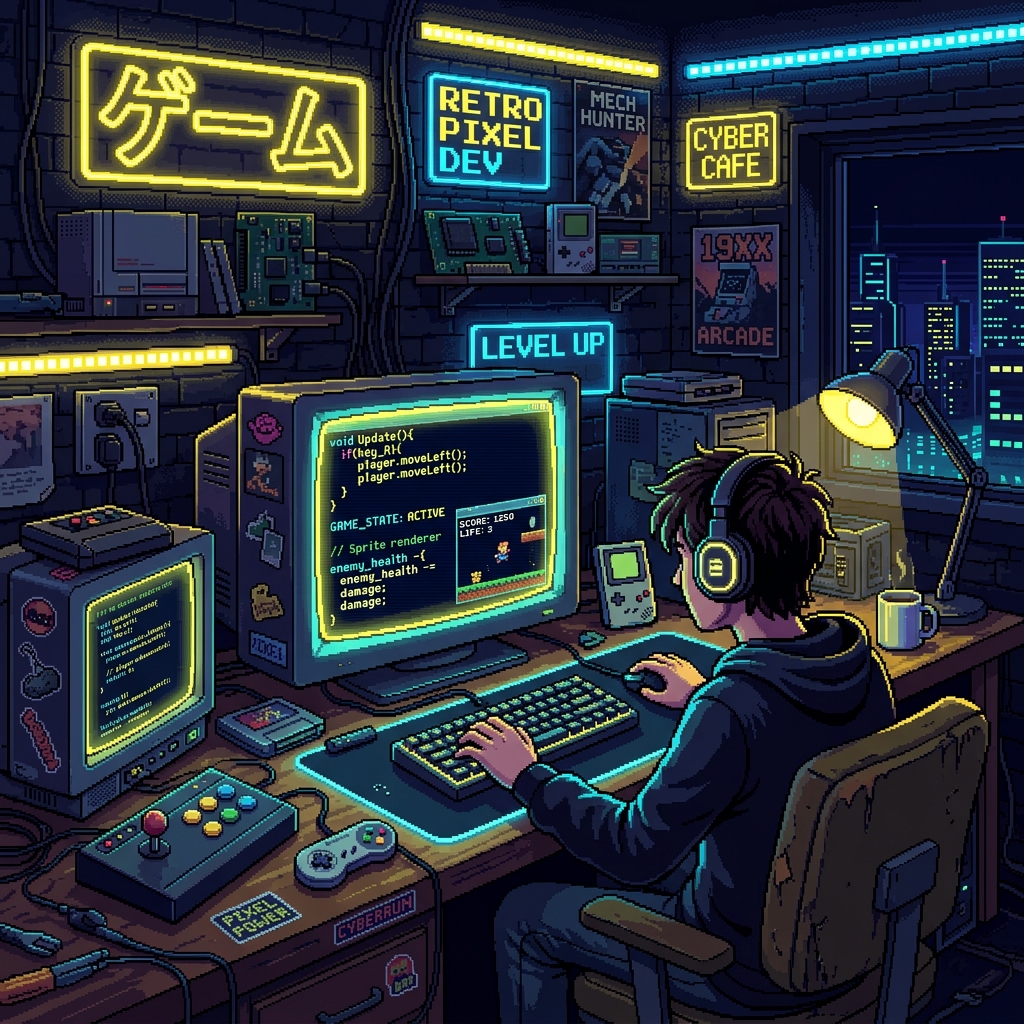
Building HTML5 browser games with LLMs (like Claude 3.5 Sonnet, ChatGPT, or Gemini) is incredibly fast, but AI models frequently fall into common traps: creating unoptimized loops, forgetting input cleanup, or writing code that overflows the screen. By feeding the AI specific 'code design hooks' in your initial prompt, you can ensure it writes robust, production-ready canvas code on the first attempt.
1. The Precise Canvas Setup Hook
AI models often write canvas sizing that looks blurry on high-DPI (Retina) screens. Instruct the AI to handle device pixel ratio (DPR) explicitly using the hook below. This ensures sharp rendering under any screen scale.
// Sharp Canvas DPR Setup
const canvas = document.getElementById("gameCanvas");
const ctx = canvas.getContext("2d");
const dpr = window.devicePixelRatio || 1;
const rect = canvas.getBoundingClientRect();

canvas.width = rect.width * dpr;
canvas.height = rect.height * dpr;
ctx.scale(dpr, dpr);
2. The Delta-Time Game Loop Hook
Without strict instructions, AI models usually write frame-rate loops that bind speed directly to the browser's requestAnimationFrame speed (which differs on 60Hz, 120Hz, and 144Hz monitors). To ensure games play at the exact same speed for everyone, mandate delta-time calculations in your prompt:
// Delta-time game loop hook
let lastTime = performance.now();
function gameLoop(currentTime) {
  requestAnimationFrame(gameLoop);
  const deltaTime = (currentTime - lastTime) / 1000; // time in seconds
  lastTime = currentTime;

  update(deltaTime);
  render();
}
3. Input Listener Cleanup Hook
When testing games, hot-reloading can cause keyboards to register duplicate keydown event listeners, leading to high speed boosts or crash loops. Force the AI to clean up input listeners or reuse a singleton keyboard tracker:
// Keyboard controller listener singleton hook
if (window.gameInputs) {
  // Clean up previous event listeners before binding new ones
  window.removeEventListener("keydown", window.gameInputs.onKeyDown);
  window.removeEventListener("keyup", window.gameInputs.onKeyUp);
}

window.gameInputs = {
  keys: {},
  onKeyDown: (e) => { window.gameInputs.keys[e.code] = true; },
  onKeyUp: (e) => { window.gameInputs.keys[e.code] = false; }
};

window.addEventListener("keydown", window.gameInputs.onKeyDown);
window.addEventListener("keyup", window.gameInputs.onKeyUp);